

How to download Power BI
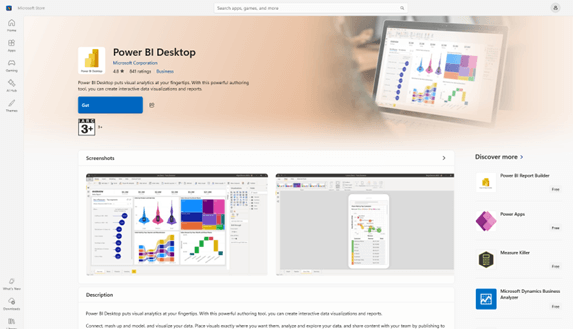
Power BI is a tool for analyzing and visualizing data that lets you build your own reports and dashboards. The JRNSW Justice Reinvestment Dashboard [link] was built in Power BI, and the JRNSW Data Hub offers training in using Power BI to develop your own tools.
This blog post will help you get started.
Power BI is available for use online, but we recommend downloading the desktop app to access the full functionality and capabilities of this tool. To download it, navigate to: https://www.microsoft.com/en-us/power-platform/products/power-bi/desktop
Select the Download Now button

This will take you to the Microsoft Store app – click Get to start the download.
Once the download is complete, open the app.
We recommend pinning it to your taskbar with the other Microsoft Office apps for easy access (right click the app and select Pin to Taskbar).
Updating Power BI Desktop
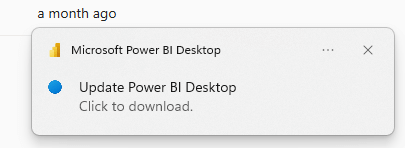
Periodically, when you open Power BI Desktop, you will see the following alert in the bottom right corner of the screen. Click the bubble, which will open a web browser page, and follow the prompts to update the app.
Accessing Power BI online
Power BI can also be used online, without the need to download the desktop app.
Step 1
Open app.powerbi.com in a web browser window
Step 2
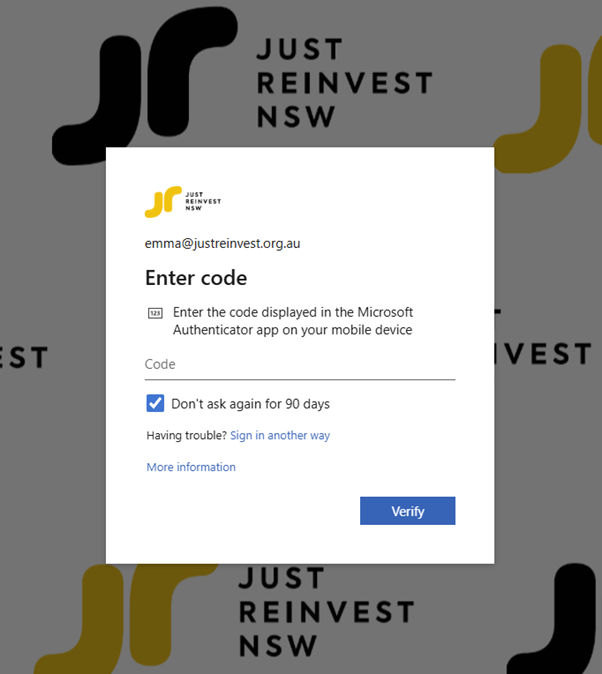
Enter your credentials
Step 3
This will redirect you to the Power BI interface
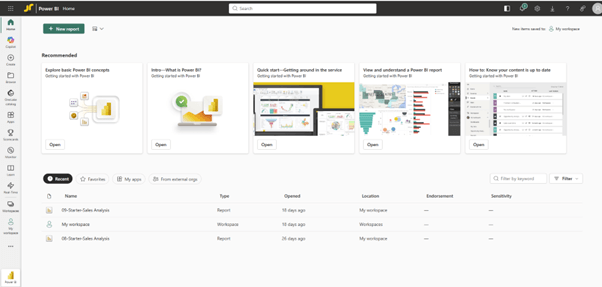
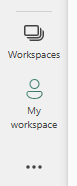
To find your published reports, click My Workspace on the left hand side menu. To navigate to other workspaces you have access to, click Workspaces.
Accessing Power BI through Teams
If you want to add Power BI directly to your teams app, this page walks through all the required steps: https://learn.microsoft.com/en-us/power-bi/collaborate-share/service-microsoft-teams-app